

2. Transit Networks

🚀 Aspiring DevOps & Cloud Engineer | Passionate about Automation, CI/CD, Containers, and Cloud Infrastructure ☁️ I work with Docker, Kubernetes, Jenkins, Terraform, AWS (IAM & S3), Linux, Shell Scripting, and Git to build efficient, scalable, and secure systems. Currently contributing to DevOps-driven projects at Assurex e-Consultant while continuously expanding my skills through hands-on cloud and automation projects. Sharing my learning journey, projects, and tutorials on DevOps, AWS, and cloud technologies to help others grow in their tech careers. 💡 Let’s learn, build, and innovate together!
VPN
Virtual Private Networks (VPNs) create an encrypted tunnel over the public Internet, allowing secure communication between on-premises networks and resources within an Amazon Virtual Private Cloud (VPC). In AWS, you can use Site-to-Site VPN to bridge your data center with your VPC, extending your network securely.
VPN Architecture
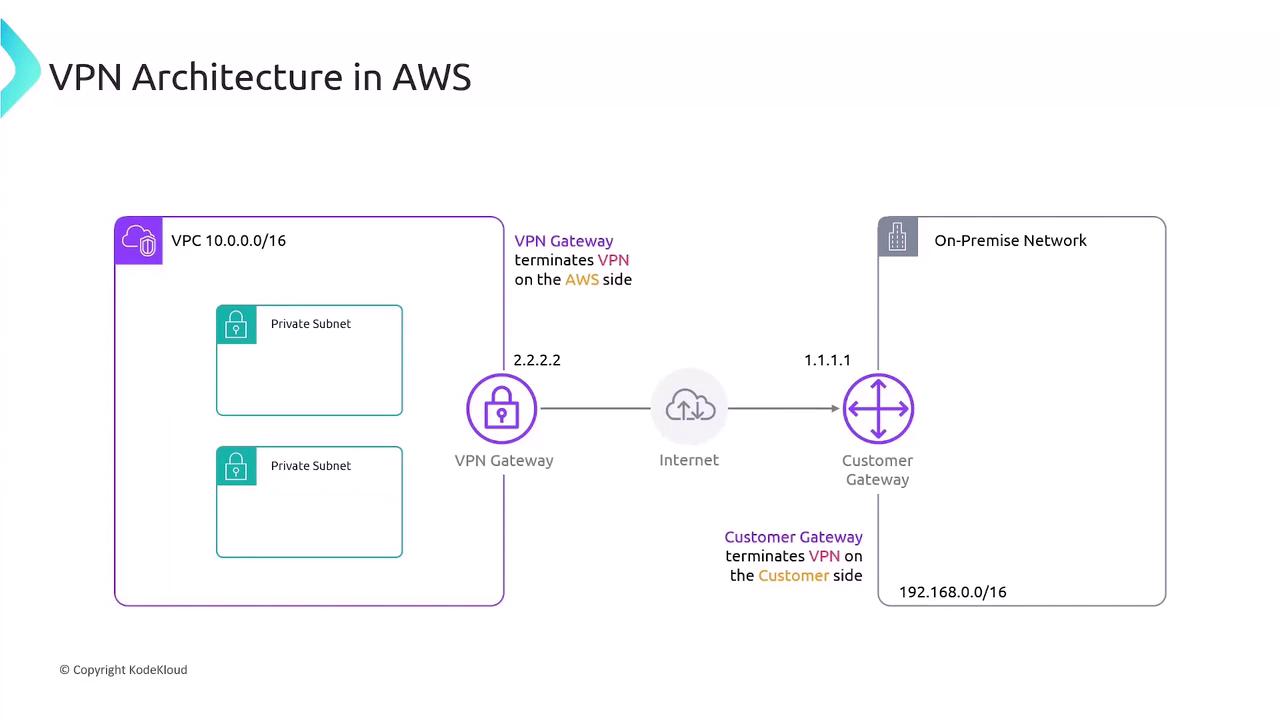
In this setup, your VPC uses the CIDR block 10.0.0.0/16 and contains private subnets without public IPs. To connect on-premises devices:
AWS deploys a Virtual Private Gateway (VGW), which terminates the IPsec tunnel on the VPC side.
Your on-premises network uses a Customer Gateway (CGW) appliance with a public IP (e.g.,
1.1.1.1).AWS assigns a public IP (e.g.,
2.2.2.2) to the VGW.An IPsec tunnel encrypts traffic between the CGW and VGW over the Internet.
Key Components
| Component | Role |
| Virtual Private Gateway | AWS-side VPN endpoint attached to your VPC |
| Customer Gateway | On-premises VPN endpoint with a public IP |
| IPsec Tunnel | Encrypts data between CGW (1.1.1.1) and VGW (2.2.2.2) |
Routing Options
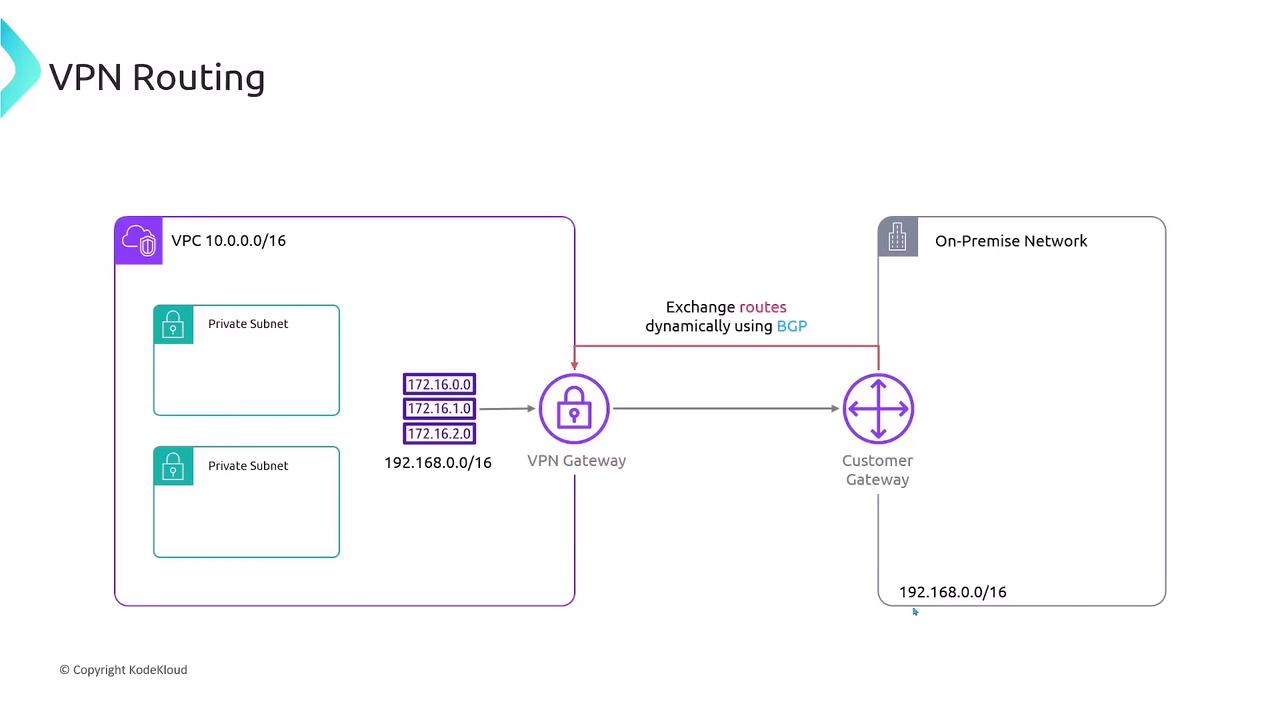
You can route traffic between 10.0.0.0/16 (VPC) and 192.168.0.0/16 (on-premises) in two ways:
1. Static Routing
Manually add routes to your VPC route table.
Destination: 192.168.0.0/16
Target: vgwy-xxxxxxxx
2. Dynamic Routing (BGP)
Use the Border Gateway Protocol (BGP) to exchange and propagate routes automatically between the Customer Gateway and the VPN Gateway.
Warning
Dynamic routing via BGP adds complexity. Ensure your on-premises router supports BGP and proper autonomous system (AS) configuration.
Pricing
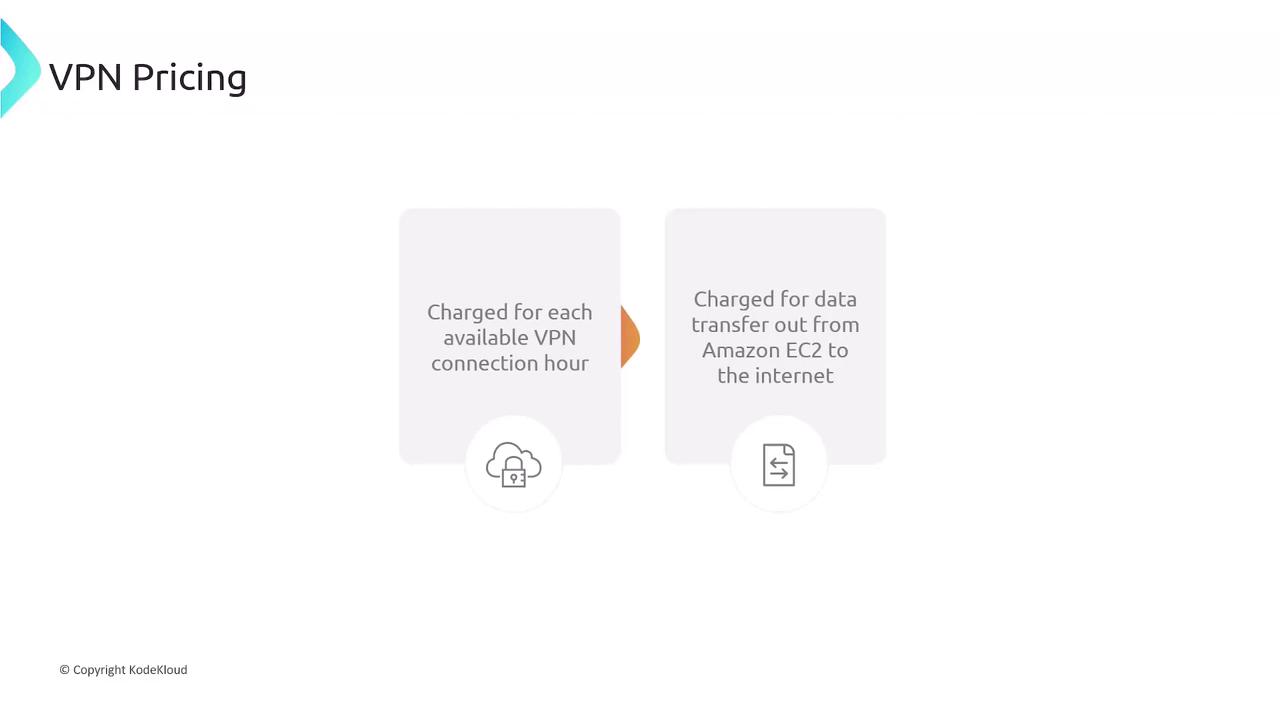
AWS Site-to-Site VPN pricing includes two main components:
| Billing Dimension | Description |
| Connection Hours | Charged per hour while each VPN connection is available |
| Data Transfer Out | Standard Amazon EC2 data transfer rates for outbound traffic to the Internet |
Note
Data transferred into AWS over the VPN is free; only outbound data is charged.
VPN Gateway Limits
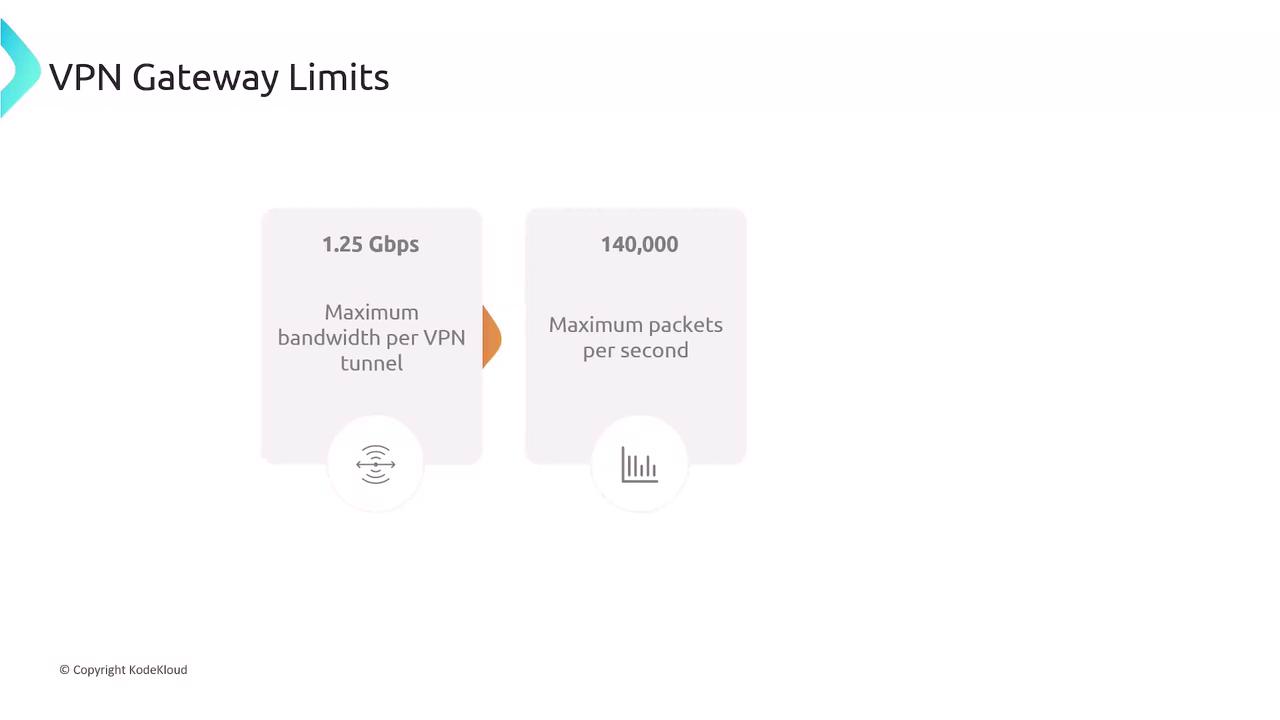
Each AWS-managed VPN tunnel supports:
| Limit | Value |
| Maximum Bandwidth | 1.25 Gbps |
| Maximum Packets per Sec | 140,000 pps |
| Path MTU | 1466 bytes |
To increase throughput, you can deploy multiple tunnels and use Equal-Cost Multi-Path (ECMP) routing.
Summary
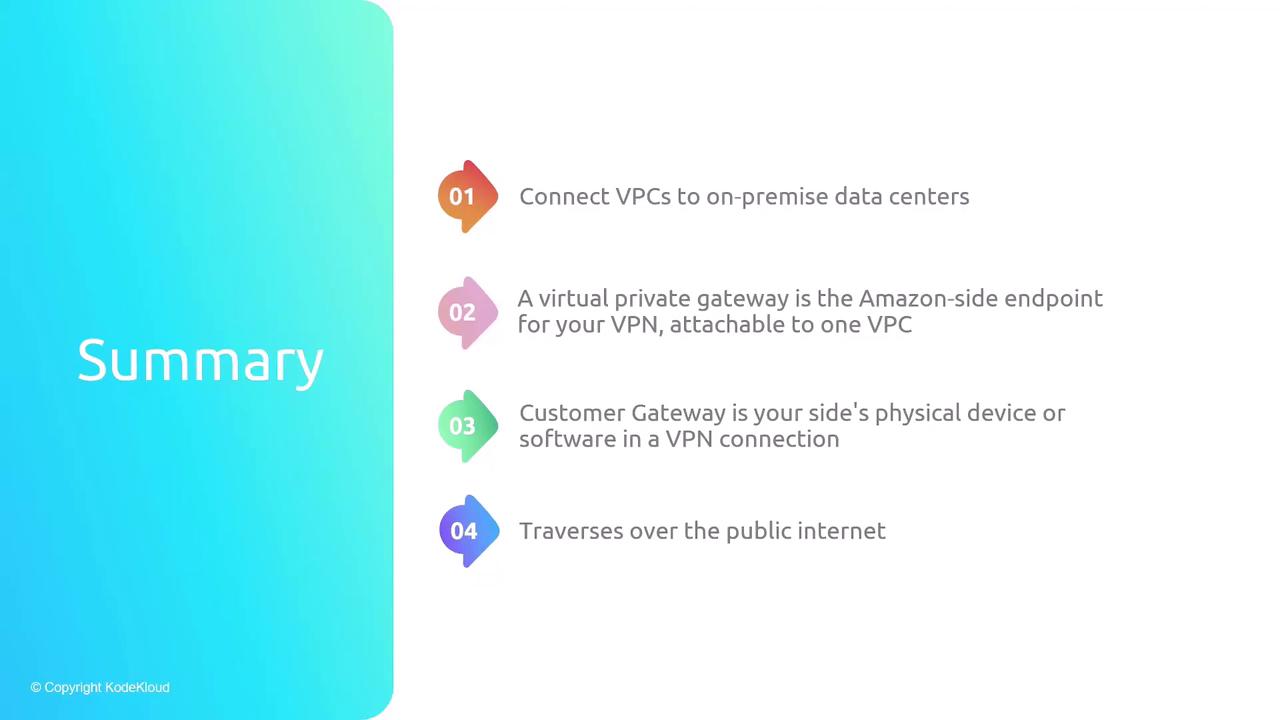
Connecting your on-premises network to an AWS VPC using VPN delivers secure, encrypted traffic flow:
Virtual Private Gateway (VGW): AWS-side endpoint attached to your VPC.
Customer Gateway (CGW): On-premises endpoint with a public IP.
IPsec Tunnel: Secures data in transit over the public Internet.
Routing: Static routes for simplicity or BGP for automation.
Pricing: Charged by VPN connection hours and outbound data.
Limits: 1.25 Gbps per tunnel, 140,000 pps, 1466 byte MTU.
Direct Connect
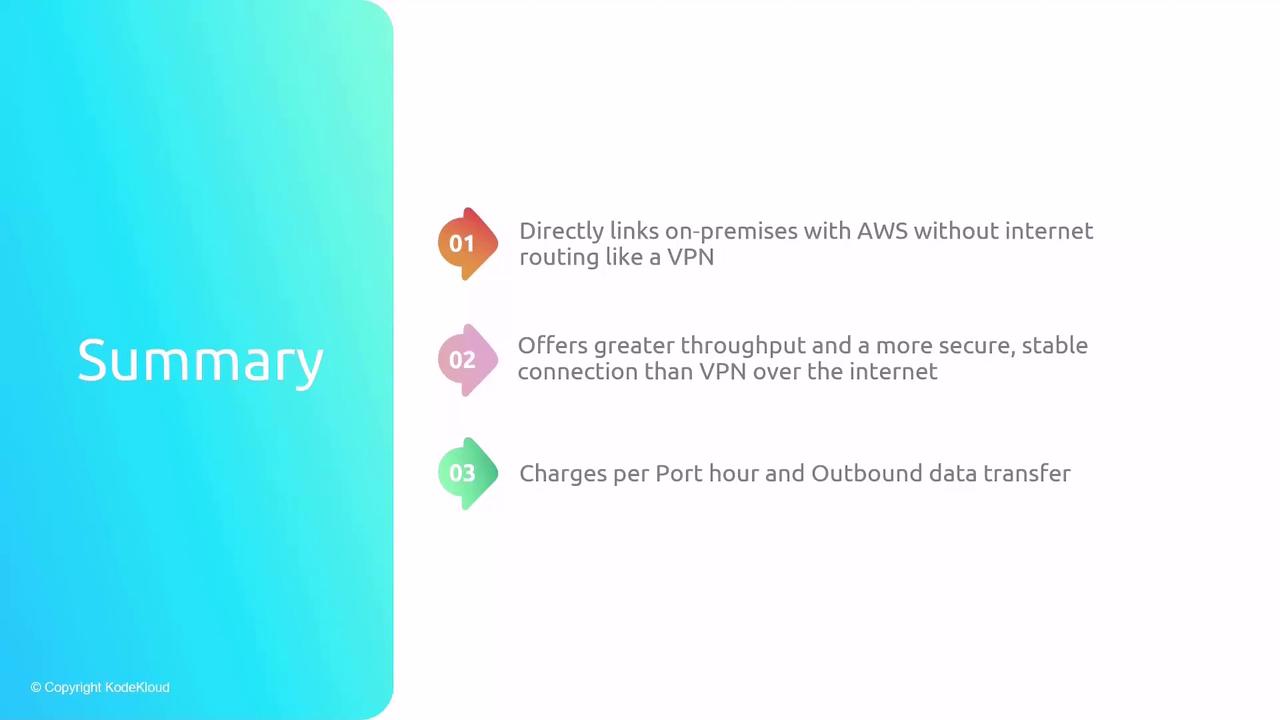
AWS Direct Connect provides a private, high-bandwidth network link between your on-premises environment (data center, office, or colocation facility) and AWS. Unlike Internet-based VPNs over IPSec tunnels, Direct Connect offers dedicated 1 Gbps, 10 Gbps, or 100 Gbps connectivity, delivering consistent low latency, higher throughput, and enhanced security.
Key Components
| Component | Description | Role |
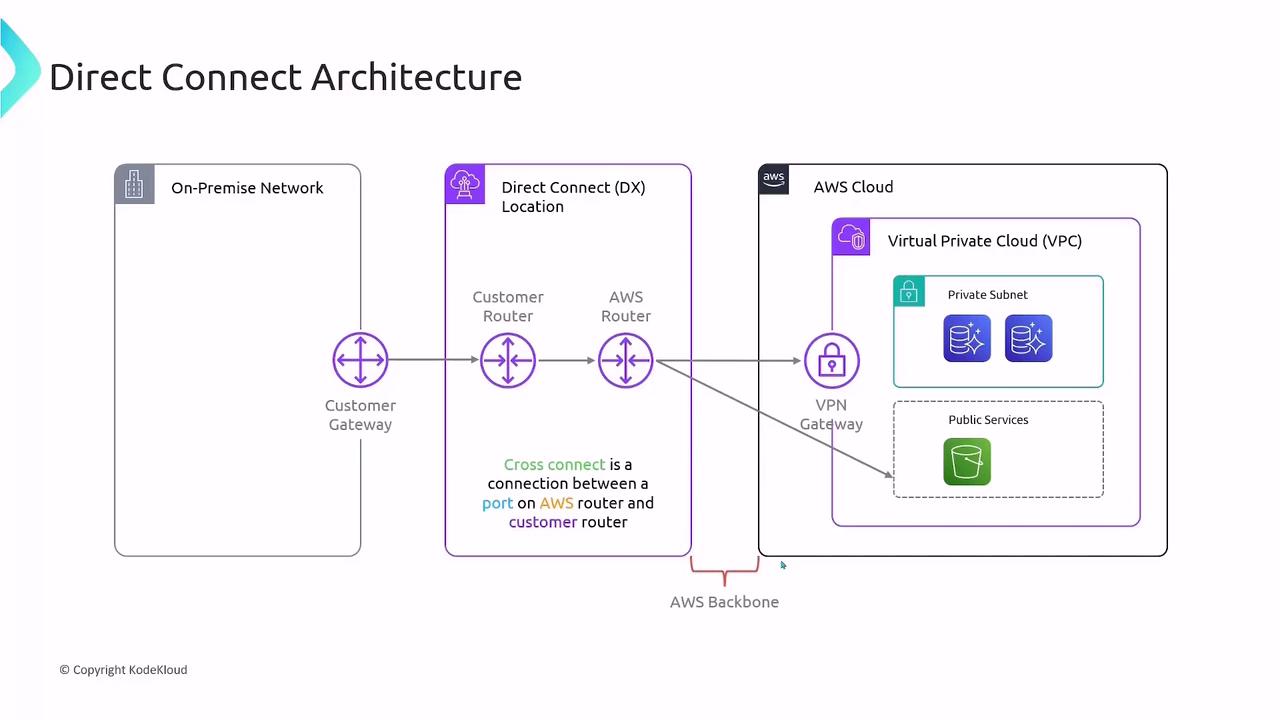
| On-Premises Network | Corporate data center or office network with an edge router or firewall. | Terminates the Direct Connect link on your side. |
| Direct Connect Location | AWS Partner or colocation facility where your customer router and AWS router meet. | Houses the cross-connect between you and AWS. |
| AWS Direct Connect Router | AWS-owned endpoint at the Direct Connect location. | Provides the physical port you lease for the connection. |
Establishing a Connection
Order a Port
Request a 1 Gbps, 10 Gbps, or 100 Gbps port in your chosen Direct Connect location.Cross-Connect Provisioning
Work with the facility operator to install a cross-connect cable between your customer router and the AWS Direct Connect router.BGP Session Setup
Configure Border Gateway Protocol (BGP) peering on both ends to exchange routes dynamically over the AWS global network.
Note
Ensure your on-premises edge device supports the desired port speed and BGP configuration.
Virtual Interfaces (VIFs)
After your physical link is active, segment traffic by creating virtual interfaces:
| VIF Type | Destination | Use Case |
| Private VIF | Virtual Private Gateway attached to your VPC | Access private subnets and EC2 instances. |
| Public VIF | AWS public endpoints (e.g., S3, DynamoDB) | Reach AWS public services over the AWS network. |
Each VIF leverages BGP to advertise and learn routes, ensuring efficient traffic flow.
Pricing Overview
With AWS Direct Connect, you incur two main charges:
| Charge Type | Description |
| Port Hours | Hourly fee per provisioned port, regardless of data usage. |
| Data Transfer Out | Standard AWS data transfer rates for outbound traffic. (Inbound is free.) |
Warning
Data transfer rates vary by AWS Region. Always review the AWS Direct Connect pricing page for the latest details.
VPC Peering
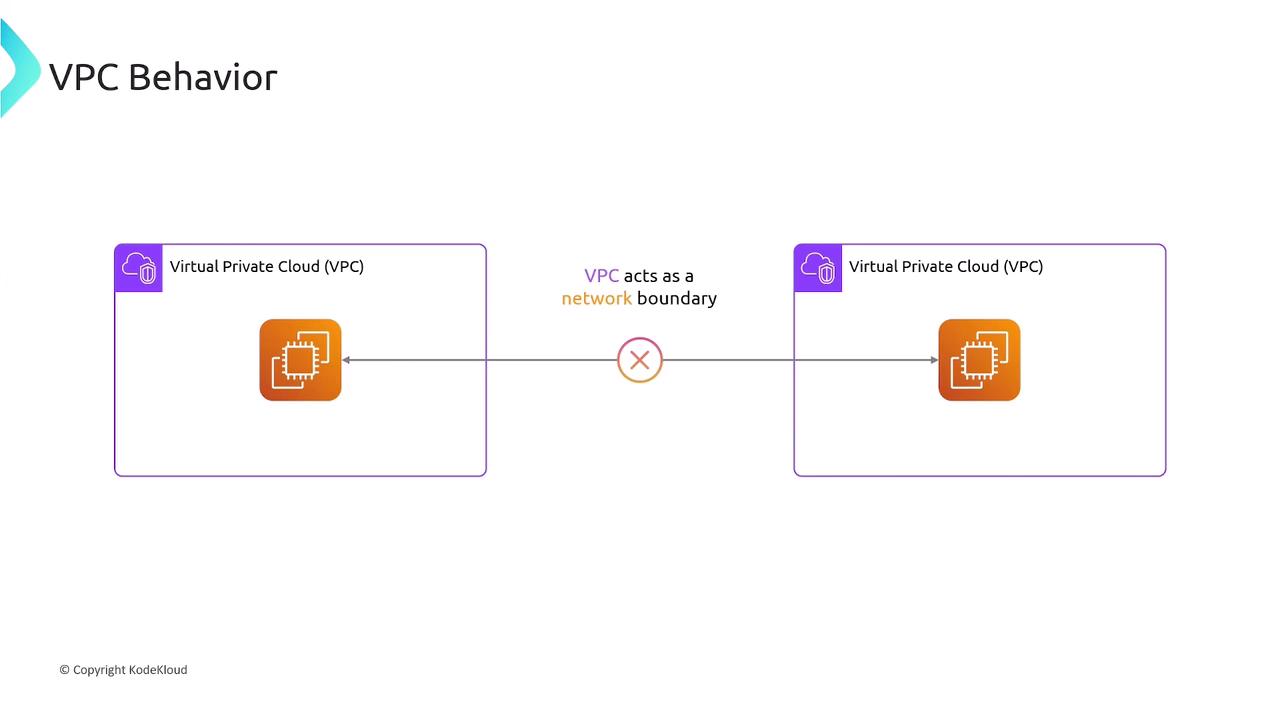
In AWS, each Virtual Private Cloud (VPC) is an isolated network boundary. By default, resources in one VPC cannot reach resources in another VPC without an explicit link.
What Is VPC Peering?
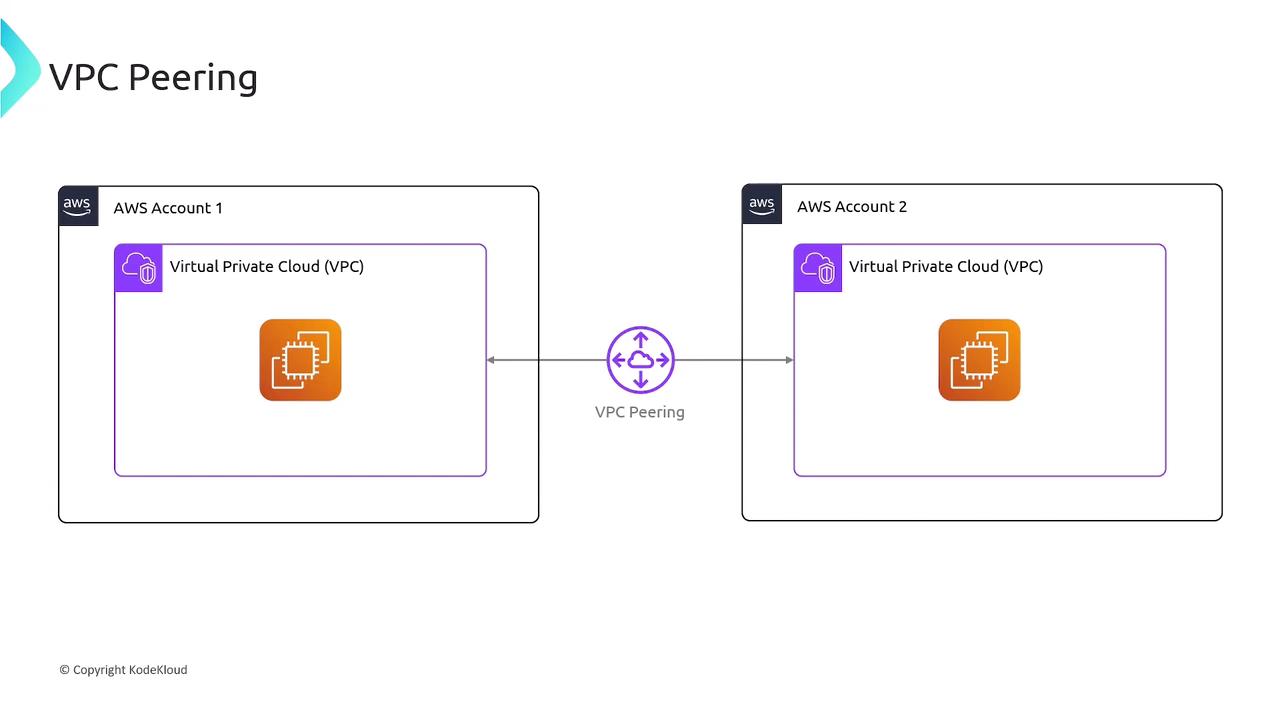
VPC Peering establishes a private network connection between two VPCs, allowing instances to communicate as if they were on the same network. You can peer:
VPCs within the same AWS Region
VPCs across different regions (Inter-Region Peering)
VPCs in separate AWS accounts
Note
Once peered, you must update route tables; peering alone doesn’t modify routing.
Pricing Overview
| Charge Type | Details |
| Peering Connection | No setup fee or hourly rate |
| Intra-AZ Data Transfer | Free (within the same Availability Zone over a peering connection) |
| Inter-AZ Data Transfer | Standard cross-AZ rates apply |
Establishing a VPC Peering Connection
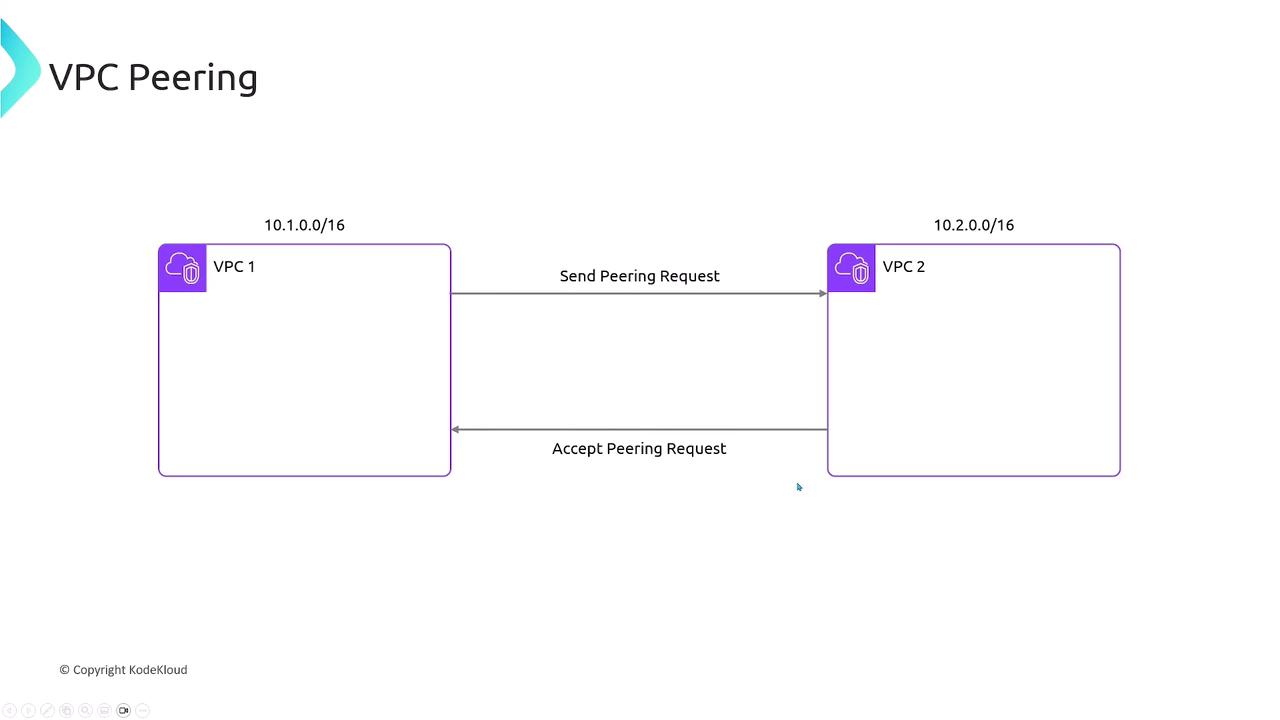
Assume two VPCs with non-overlapping CIDR blocks:
VPC1:
10.1.0.0/16VPC2:
10.2.0.0/16
Steps to create the peering link:
Request Peering
AWS Console: VPC dashboard → Peering Connections → Create Peering Connection
AWS CLI:
  aws ec2 create-vpc-peering-connection \
    --vpc-id vpc-01234567 --peer-vpc-id vpc-089abcdef
Accept Peering
- Console or CLI (
accept-vpc-peering-connection) by the peer VPC owner.
- Console or CLI (
Verify Connection
- Status changes to
activein the Peering Connections list—but routing is still pending.
- Status changes to
Configuring Route Tables
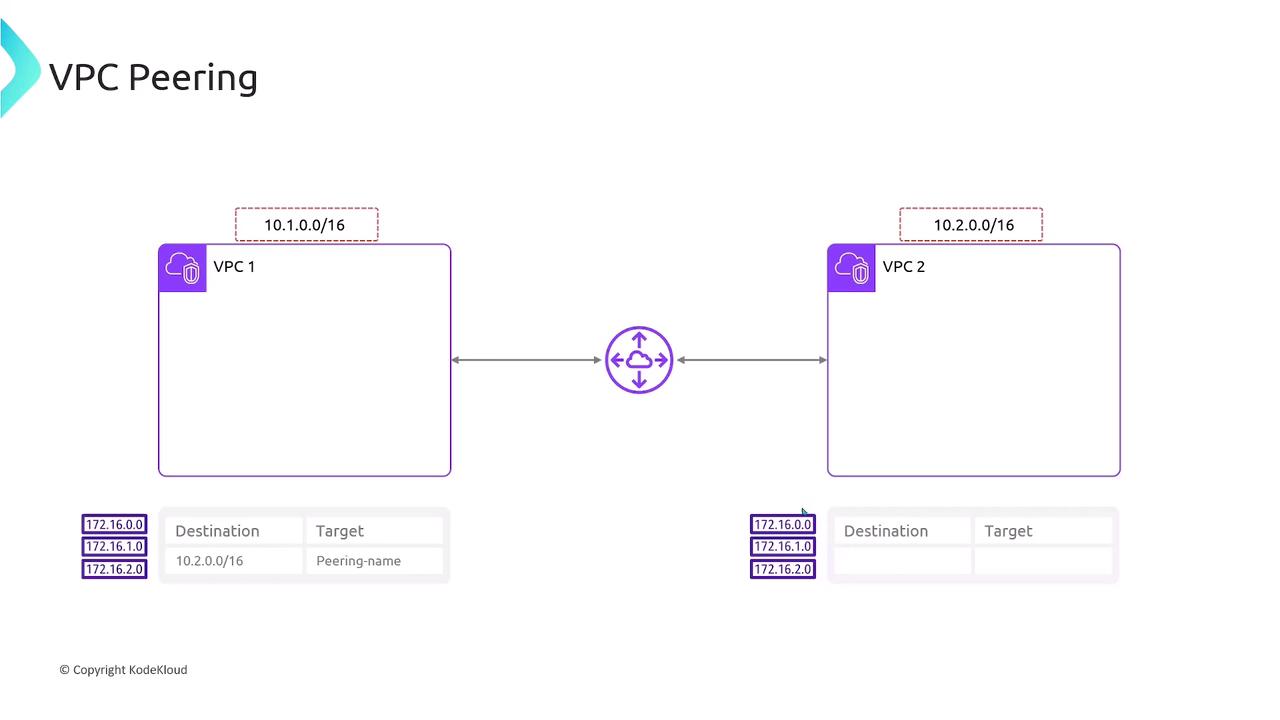
After peering is active, add routes in each VPC’s route table:
VPC1 route table
Destination     Target
10.2.0.0/16     pcx-0a1b2c3d4e5f6g7h
VPC2 route table
Destination     Target
10.1.0.0/16     pcx-0a1b2c3d4e5f6g7h
This ensures traffic flows over the peering link instead of the internet gateway.
Warning
VPC Peering is non-transitive. If VPC1 peers with VPC2, and VPC2 peers with VPC3, VPC1 cannot reach VPC3 through VPC2. Each pair requires its own peering connection.
Transitive Peering Is Not Supported
VPC1 ↔ VPC2
VPC2 ↔ VPC3
No indirect VPC1 ↔ VPC3 communication
Summary
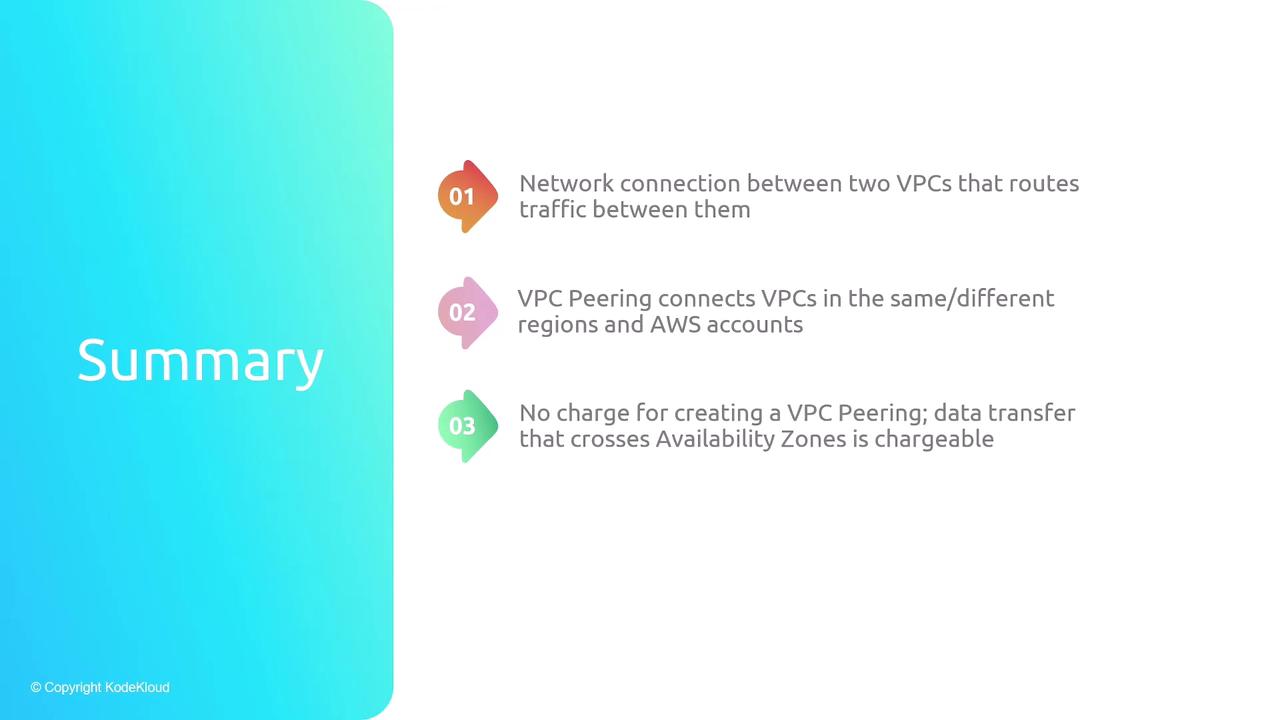
VPC Peering connects two VPCs privately.
Peerings can span regions and AWS accounts.
No cost for the connection itself; data transfer pricing applies.
Each VPC pair requires its own peering link—no transit routing.
VPC Peering Demo
In this tutorial, you’ll learn how to establish a VPC peering connection between two AWS VPCs so that their EC2 instances can communicate over the private AWS network:
| VPC Identifier | CIDR Block | EC2 Instance | Private IP |
| VPC-A | 10.1.0.0/16 | server1 | 10.1.1.13 |
| VPC-B | 10.2.0.0/16 | server2 | 10.2.1.139 |
Prerequisites
Make sure both VPCs have security groups and network ACLs allowing ICMP traffic. You also need IAM permissions to manage VPC peering and route tables.
Since VPCs are isolated by default, pinging from server1 to server2 will initially fail:
[ec2-user@ip-10-1-1-13 ~]$ ping 10.2.1.139
PING 10.2.1.139 (10.2.1.139) 56(84) bytes of data.
^C
--- 10.2.1.139 ping statistics ---
195 packets transmitted, 0 received, 100% packet loss
1. Create the VPC Peering Connection
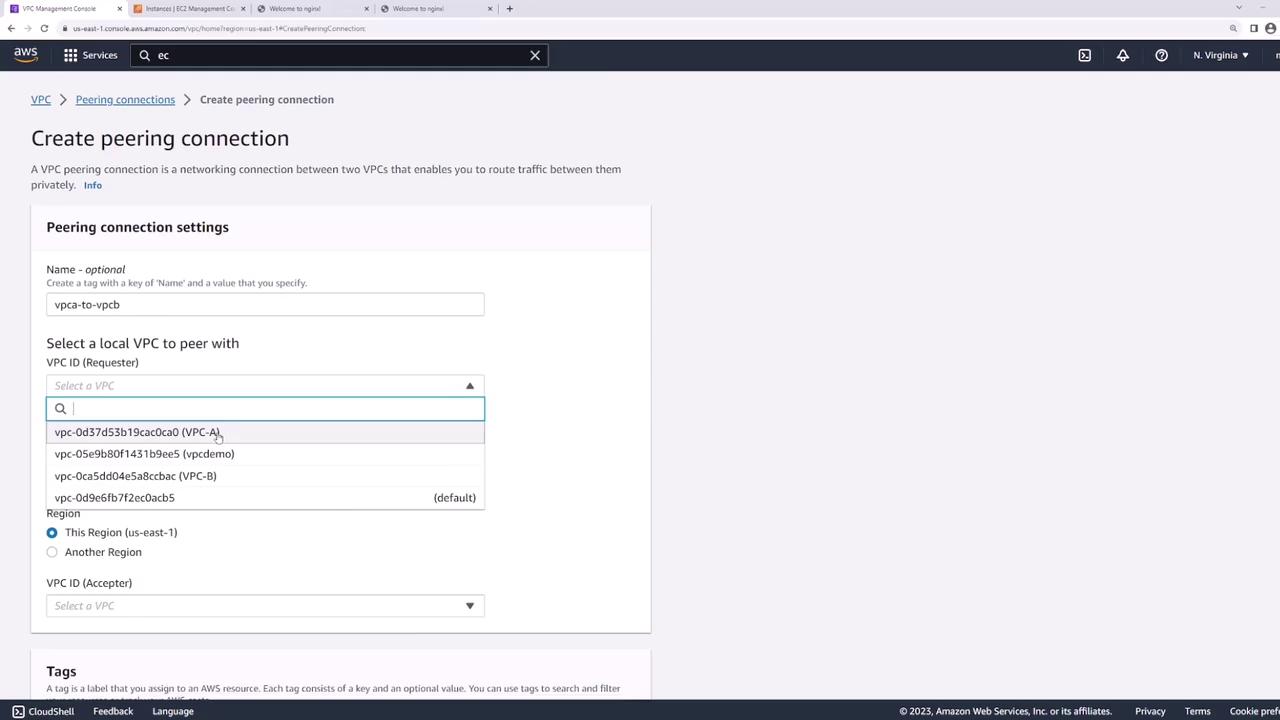
Open the AWS VPC console and select Peering Connections → Create Peering Connection.
Name the connection
VPC-A-to-VPC-B.Under Requester, choose VPC-A.
Under Accepter, select your account and region, then choose VPC-B.
Click Create Peering Connection.
Automation Tip
You can also provision VPC peering using Infrastructure as Code tools like Terraform or AWS CloudFormation.
2. Accept the Peering Request
In Peering Connections, locate the new connection in Pending Acceptance.
Select it, then choose Actions → Accept Request.
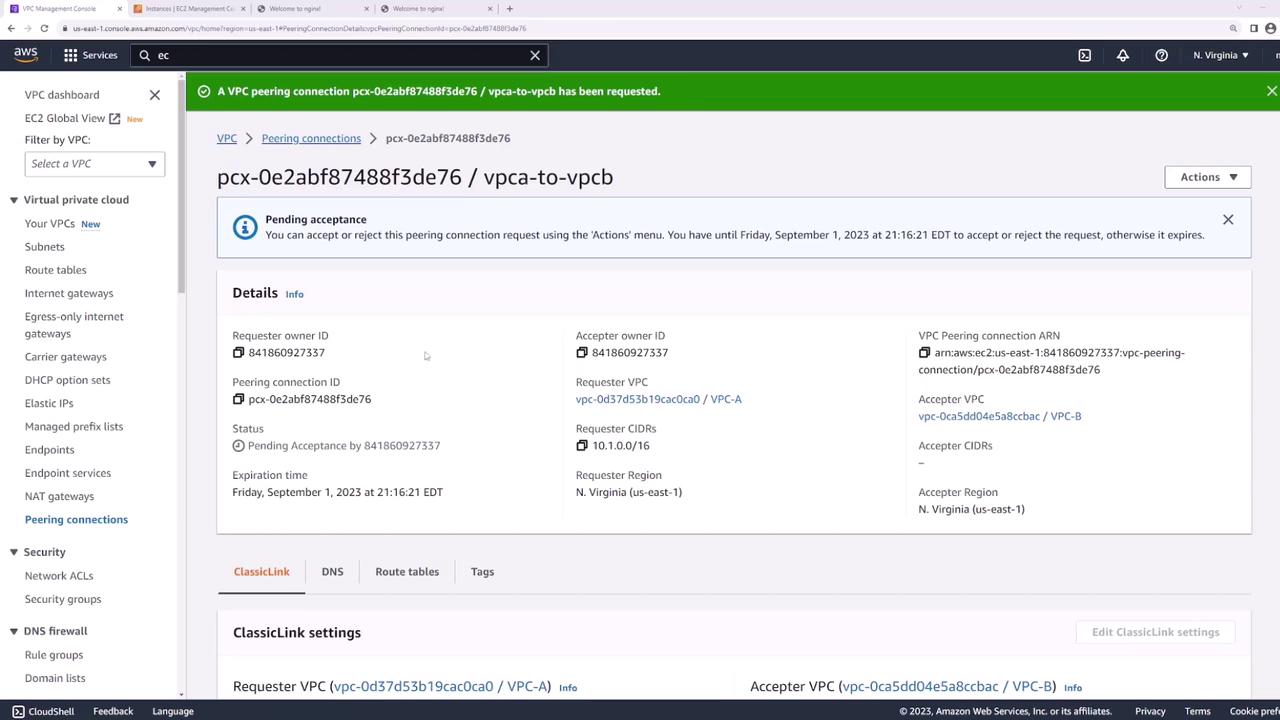
Once accepted, its status changes to Active:
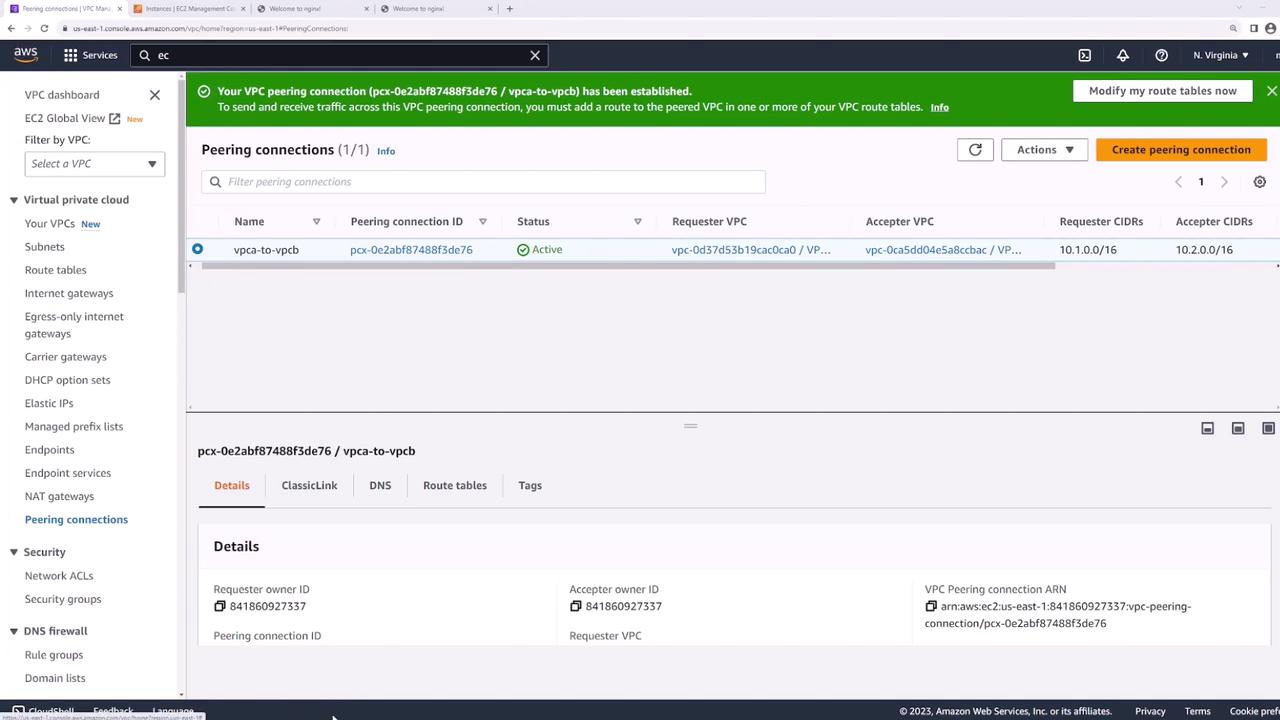
Important
Even after peering is active, traffic won’t flow until you update each VPC’s route tables.
3. Update Route Tables
Each VPC needs a route pointing to the other VPC’s CIDR block through the peering connection:
In the VPC console, go to Route Tables.
Select the route table for VPC-A.
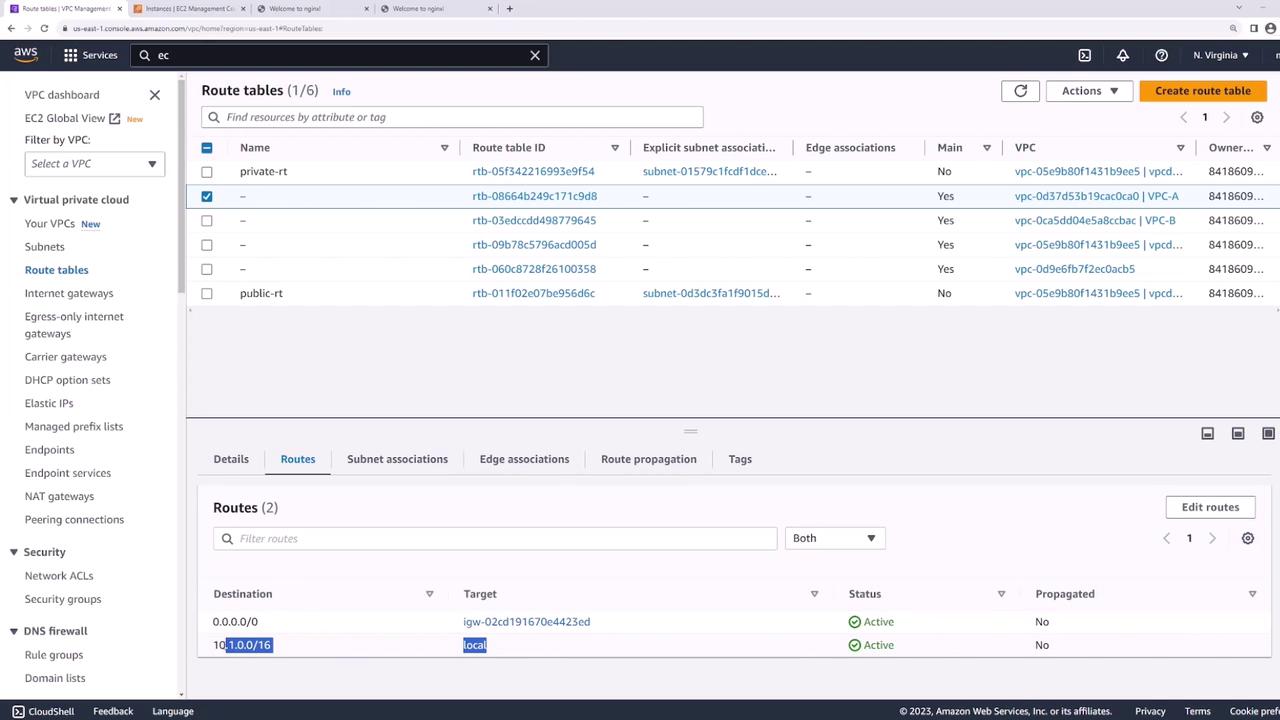
Under Routes, click Edit routes → Add route:
Destination:
10.2.0.0/16Target: the peering connection (
VPC-A-to-VPC-B)
Save changes.
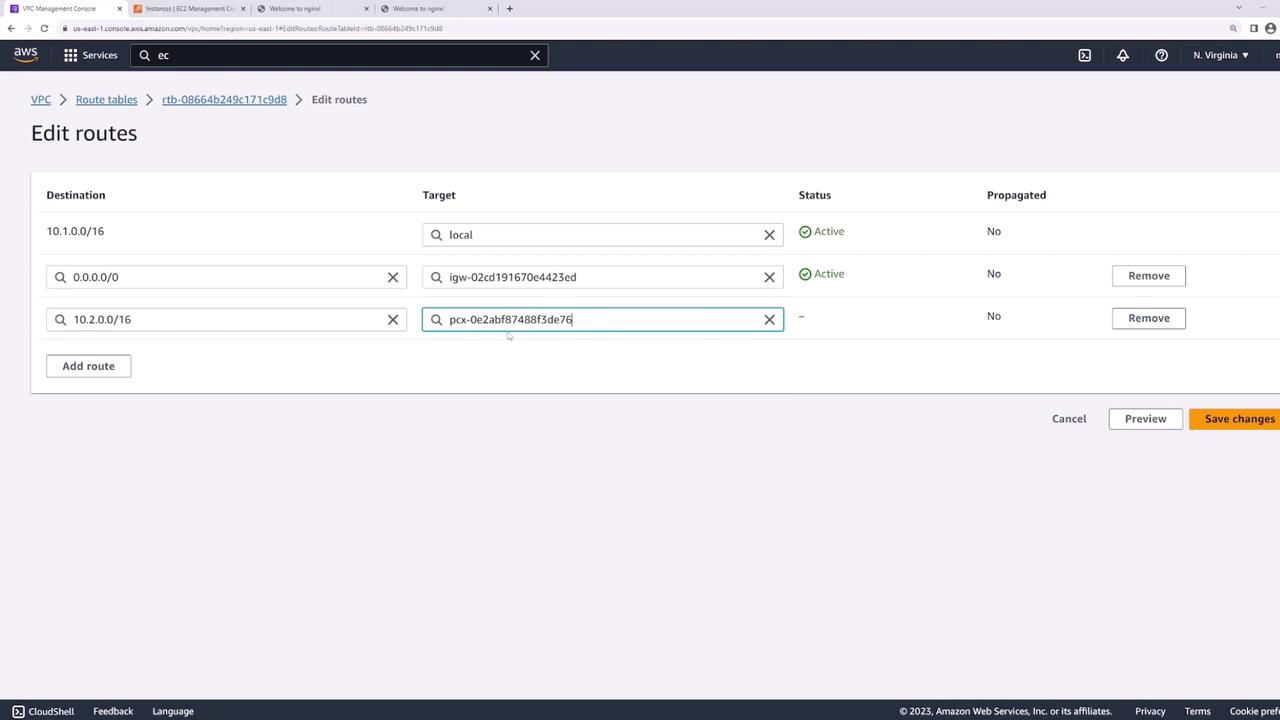
- Repeat these steps on VPC-B’s route table, adding a route to
10.1.0.0/16via the same peering connection.
4. Verify Connectivity
Return to server1 and ping server2:
[ec2-user@ip-10-1-1-13 ~]$ ping 10.2.1.139
PING 10.2.1.139 (10.2.1.139) 56(84) bytes of data.
64 bytes from 10.2.1.139: icmp_seq=1 ttl=127 time=1.88 ms
64 bytes from 10.2.1.139: icmp_seq=2 ttl=127 time=1.43 ms
64 bytes from 10.2.1.139: icmp_seq=3 ttl=127 time=1.38 ms
^C
--- 10.2.1.139 ping statistics ---
3 packets transmitted, 3 received, 0% packet loss, time 2002ms
rtt min/avg/max/mdev = 1.382/1.563/1.882/0.187 ms
Your EC2 instances can now communicate across VPCs using the private AWS backbone.
Transit Gateway
AWS Transit Gateway provides a central hub to connect multiple VPCs and on-premises networks, eliminating the complexity of full mesh peering and point-to-point VPNs. With built-in transitive routing, it scales to support thousands of attachments, simplifying network management and improving performance.
For detailed guidance, see AWS Transit Gateway Documentation.
Challenges with VPC Peering
By default, VPCs are isolated. You must create peering connections to enable traffic flow:
VPC A ↔ VPC B
VPC B ↔ VPC C
However, peering is non-transitive: A cannot reach C via B. For four VPCs, you’d need a full mesh:
VPC1—VPC2
VPC1—VPC3
VPC1—VPC4
VPC2—VPC3
VPC2—VPC4
VPC3—VPC4
Similarly, on-premises connectivity requires individual VPNs or Direct Connect links per VPC. As the number of VPCs grows, the network quickly becomes difficult to scale and manage.
What Is AWS Transit Gateway?
AWS Transit Gateway acts as a regional network hub to interconnect your VPCs and on-premises environments with a single gateway.
Simplified VPC Connectivity
Instead of a mesh of peerings, attach each VPC to the Transit Gateway:
VPC1 ↔ TGW
VPC2 ↔ TGW
VPC3 ↔ TGW
VPC4 ↔ TGW
Now all VPCs communicate through the hub, with automatic transitive routing.
Subnet Attachments
When you attach a VPC to a Transit Gateway, you specify one subnet in each Availability Zone:
If your VPC spans AZ-A, AZ-B, and AZ-C, create three Transit Gateway subnets.
TGW uses these subnets for routing and high availability.
Note
Each Transit Gateway attachment requires at least one subnet per AZ. Plan your AZ strategy accordingly to avoid single points of failure.
Centralized On-Premises Connectivity
You can terminate all VPN and Direct Connect circuits on the Transit Gateway, reducing tunnel count and improving bandwidth utilization.
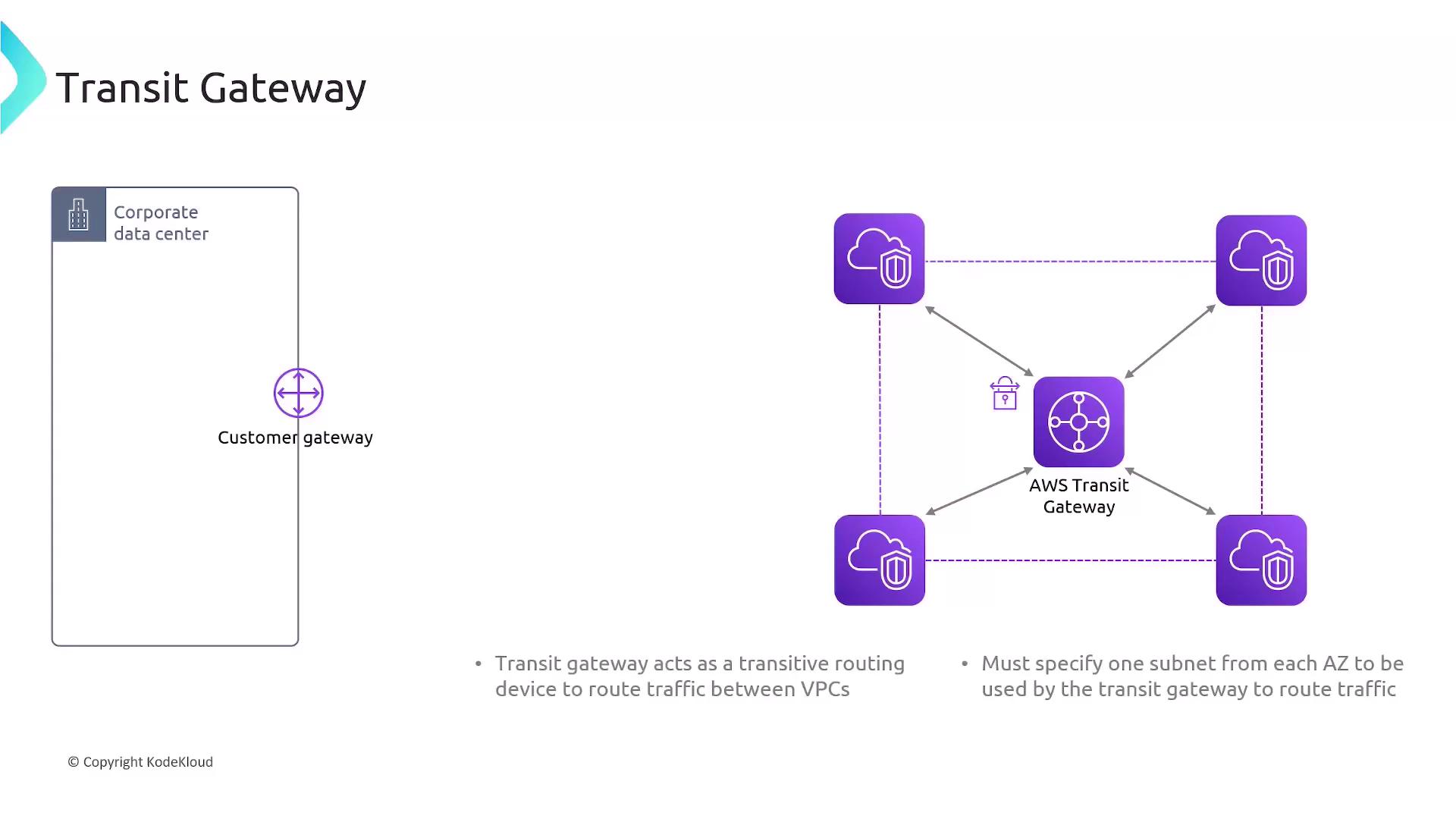
VPN Consolidation: One VPN tunnel to TGW replaces N tunnels to N VPCs.
Direct Connect: Attach a DX gateway to TGW for high throughput and low latency.
Transit Gateway Peering
Use Transit Gateway peering to connect hubs across regions or accounts:
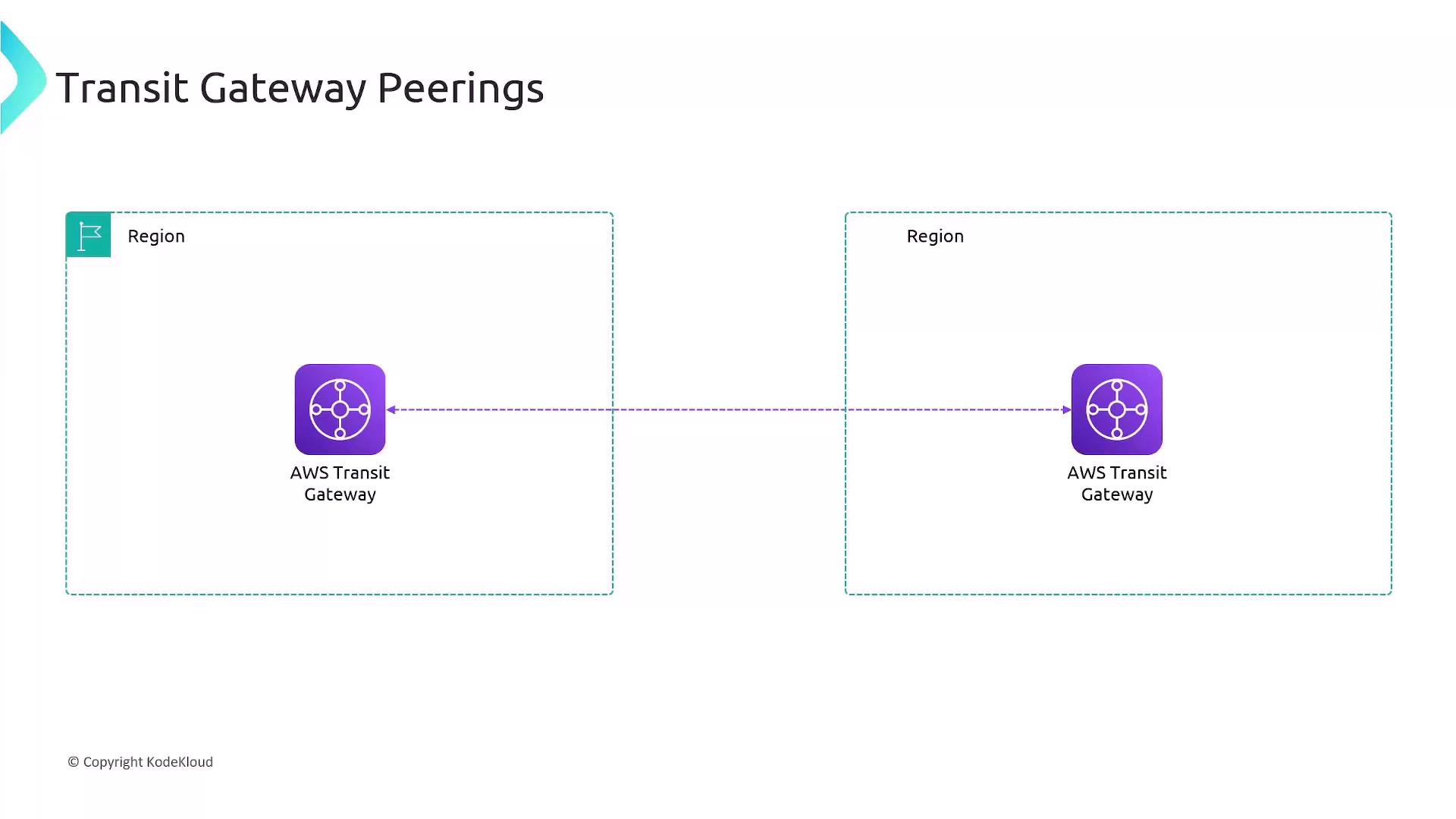
| Peering Type | Description |
| Inter-Region | Connect TGWs in different AWS Regions |
| Cross-Account | Share TGW attachments across AWS accounts |
Key Features and Benefits
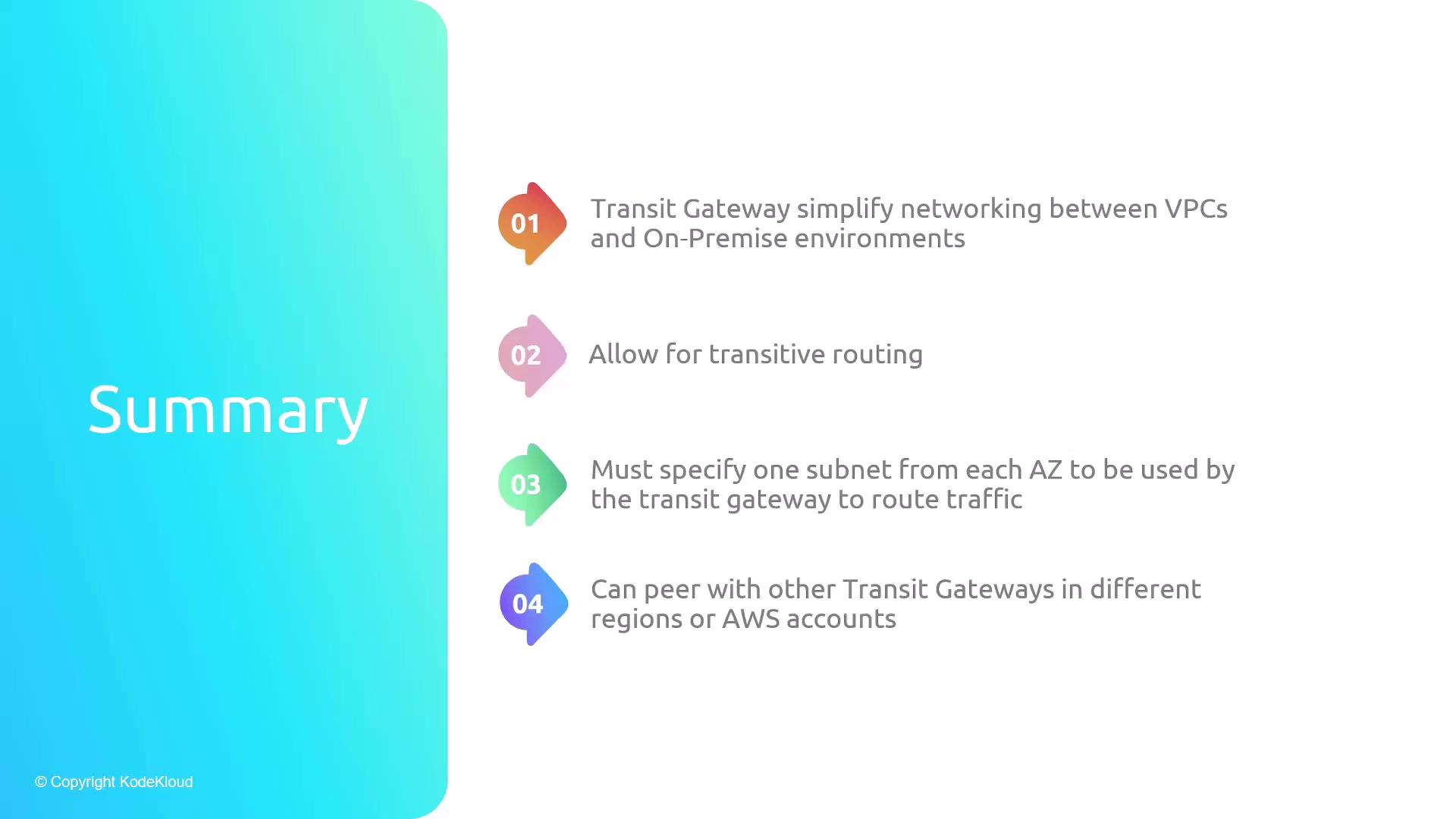
| Feature | Benefit |
| Simplified Topology | Single hub replaces complex VPC mesh and point-to-point links |
| Transitive Routing | Automatic routing between all attached VPCs and on-prem networks |
| Subnet Attachments | High availability with one subnet per AZ |
| Peering Capabilities | Global reach via cross-region and cross-account connections |
Warning
Ensure your AWS account limits and route table entries align with the number of Transit Gateway attachments to avoid resource exhaustion.
By adopting AWS Transit Gateway, you streamline your network architecture, enable scalable transitive routing, and centralize connectivity for both cloud and on-premises environments.
Privatelink
In this article, we’ll cover what AWS PrivateLink is, why you need it, and how it works under the hood.
Challenges with Private Subnets
When an EC2 instance in a private subnet needs to access a public service like Amazon S3, the typical solution is to route traffic through an Internet Gateway or NAT Gateway. This approach:
Exposes your instance to the public Internet and potential attacks
Introduces additional infrastructure components and management overhead
Incurs extra data processing costs on NAT devices
Warning
Using NAT gateways or Internet Gateways for service access can increase your AWS costs and expand your security attack surface.
What Is AWS PrivateLink?
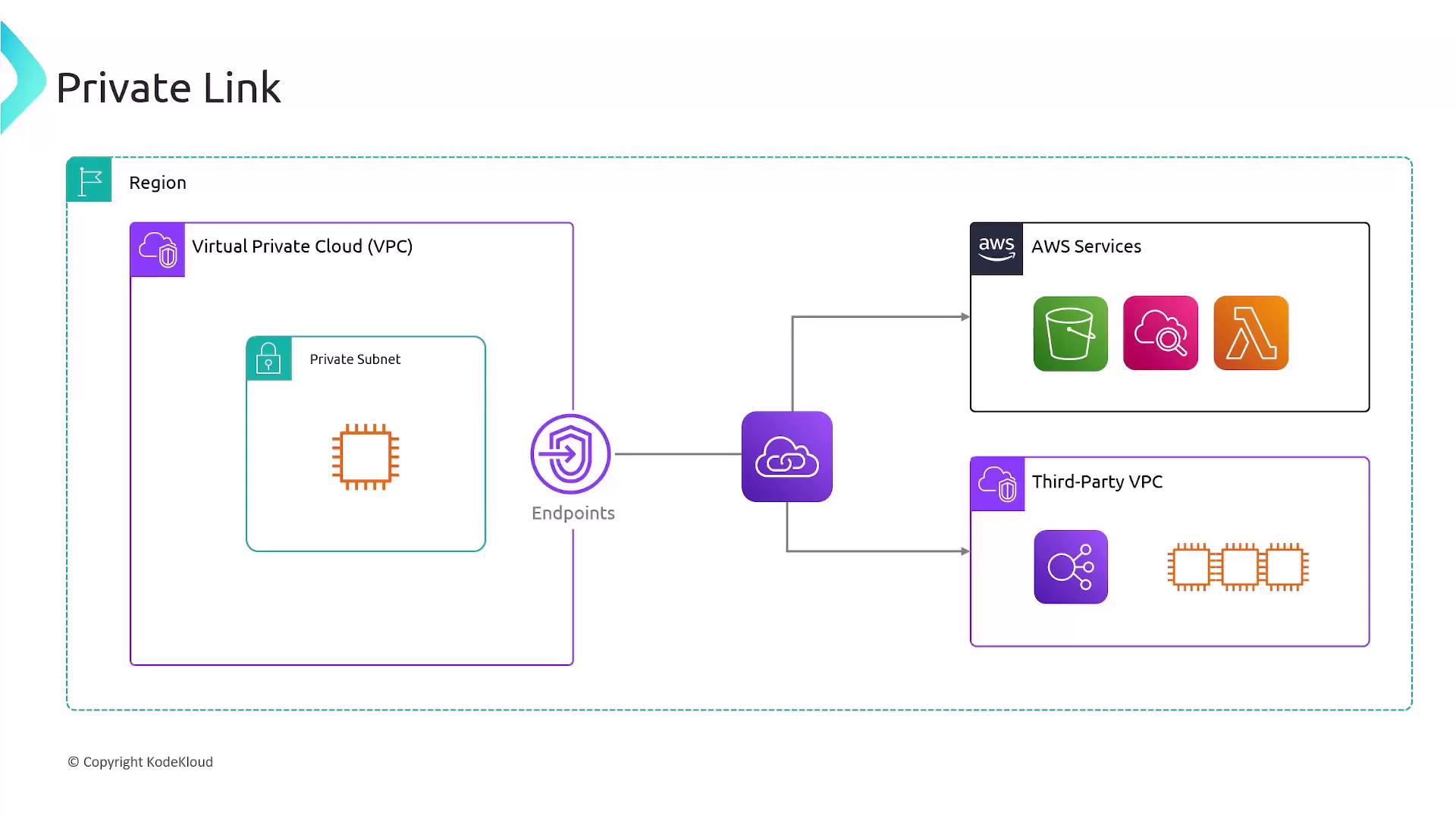
AWS PrivateLink provides private, highly available connectivity between your Virtual Private Cloud (VPC) and supported AWS services, other VPCs, or third-party services. All traffic stays within the AWS global network, never traversing the public Internet.
Key Benefits
| Benefit | Description |
| Security | Traffic remains on the AWS network, reducing exposure to Internet-based threats. |
| Simplicity | Eliminates the need for Internet Gateways, NAT gateways, or complex firewall configurations. |
| Scalability | Easily connect to supported AWS services (S3, Kinesis, EC2 API) or external VPC endpoint services. |
Note
AWS PrivateLink endpoints incur per-hour and per-GB data processing charges. Review the VPC pricing page for details.
How AWS PrivateLink Works
Service Owner
Creates a VPC Endpoint Service and configures one or more Network Load Balancers.
Shares the service with specific AWS accounts or makes it publicly available.
Service Consumer
Creates an Interface VPC Endpoint in their VPC, selecting subnets and security groups.
The endpoint provisions elastic network interfaces with private IPs in each subnet.
DNS Integration
AWS automatically creates DNS records that map the service’s public hostname to the private IP addresses of your endpoint.
Your application uses the same API endpoint (e.g.,
s3.amazonaws.com), but traffic routes securely via PrivateLink.
When to Use AWS PrivateLink
Accessing AWS services (S3, EC2, Kinesis, Secrets Manager) from private subnets
Connecting to partner or third-party services without exposing data to the Internet
Establishing cross-account or cross-VPC communication with granular access control
Summary
AWS PrivateLink simplifies and secures your network architecture by enabling private connectivity to AWS and partner services. It eliminates the need for Internet Gateways or NAT devices, keeps traffic within AWS’s backbone, and scales seamlessly to meet your application demands.

